expression box chart
Learn how to compare expression and protein intensity distributions across selected ROIs using box charts.
reference image
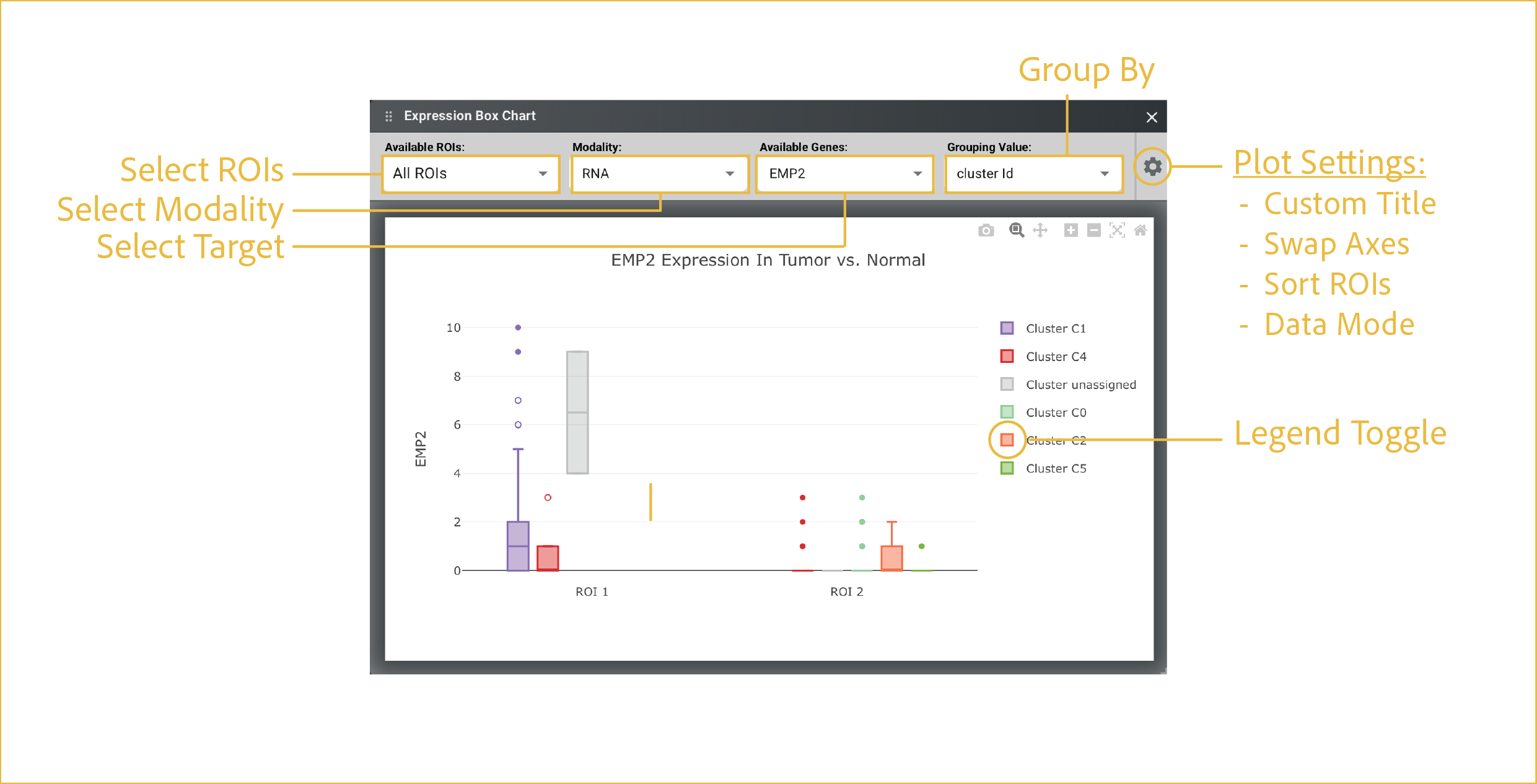
features
An expression box plot is most useful for comparing the distribution and variability of a gene or protein's expression across groups, showing median levels, spread, and potential outliers. It helps assess whether observed differences are consistent across ROIs or if an ROI has significant differences in RNA or protein expression.
-
Select ROIs:
This drop down has a multiselect feature which allows you to choose which ROIs to display and compare. You can choose them one-at-a-time by checking each desired box, or you can Select All.
-
Select Modality:
This drop down menu allows you to choose whether to focus on
RNAorprotein. -
Select Target:
This drop down menu allows you to choose the specific
RNAorproteintargets to display relative abundances of. -
Group By:
This category determines the second level breakdown for bar display. Options are
cluster Id,roi, andnone. -
Plot Settings:
The settings menu changes structural aspects of the plot related to axes, colorbars, and labels. This menu is shared across all plots. For each plot, the options are specific to the type of plot that is being made. For box charts, the options are as follows:
- Custom Title: Input a string to display as your plot title.
- Swap Axis: Allows swap of X and Y axes.
- Sort ROIs: Places all ROIs in the order in which they were drawn.
- Data Mode: Changes what type of box chart display is used (all, outliers, suspected outliers, none).
-
Legend Toggle:
In the G4X Viewer, any time a legend is displayed, the points displayed can be modified by left clicking once or twice on a given legend element. This feature is shared across most interactable Plotly plots found in G4X outputs.
Single click:Hides selected category. Multiple can be hidden at once. Single clicking again will unhide.Double click:Hides all categories except for the selected group.
⸻