flow cytometry filter
This section describes how to use the flow cytometry filtering tool to identify and visualize cell populations based on protein expression distributions.
reference image
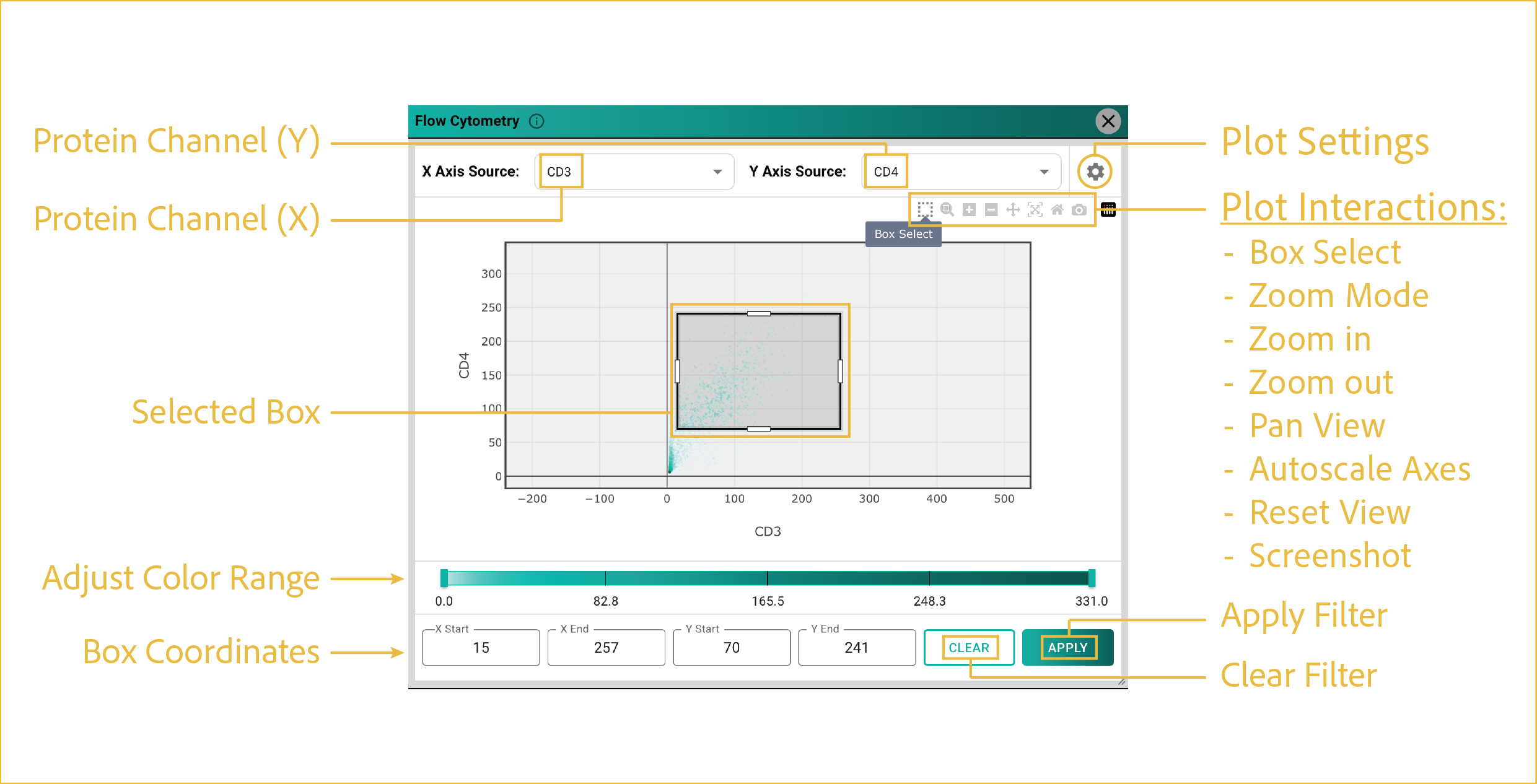
These controls configure the flow cytometry plot and apply selected protein-expression populations back to the main viewer.
features
-
Protein Channel (X/Y):
Select two protein channels to compare cell-level protein intensity values.
Protein intensity is calculated using the mean intensity across all pixels within each cell. The same protein channel cannot be selected for both axes.
-
Plot Settings:
You can access plot customization options by clicking the gear icon in the upper-right corner of the window. Available settings include:
- Graph type
- Color scale
- Number of bins
- Subsampling
- Point size
- Logarithmic scaling
- Additional plot display options
-
Plot Interactions:
This menu provides standard Plotly interactions. For filtering, the most important tool is Box Select, highlighted in the reference image. Use this tool to select a subpopulation of cells for downstream filtering.
- Box Select: Selects cells to filter for segmentation display.
- Zoom Mode: Allows dynamic scrolling to change the plot zoom level.
- Zoom In: Zooms in at set intervals.
- Zoom Out: Zooms out at set intervals.
- Pan View: Allows panning around the plot with your cursor.
- Autoscale Axes: Autoscales axes to display all points in the viewing area.
- Reset View: Returns to the default plot view.
- Screenshot: Captures the displayed plot area without tools or other UI elements.
-
Selected Box:
After selecting the Box Select tool, left-click and drag to create a box around the cells you want to filter. This display shows an example selection on the flow cytometry plot.
-
Box Coordinates:
These values describe the X and Y ranges of the box used for the filter. You can manually update these values if needed.
-
Apply/Clear Filter:
Once you are satisfied with your box selection, click APPLY to display the selected cells in the main viewer window.
The filter remains active until you reopen the Flow Cytometry Filter tool and click CLEAR. Flow cytometry filtering behaves like other segmentation filters and can be combined with other viewer filtering features.
⸻