source files
This section describes how to load G4X data into the viewer and manage layer visibility using the available layer controls.
reference image
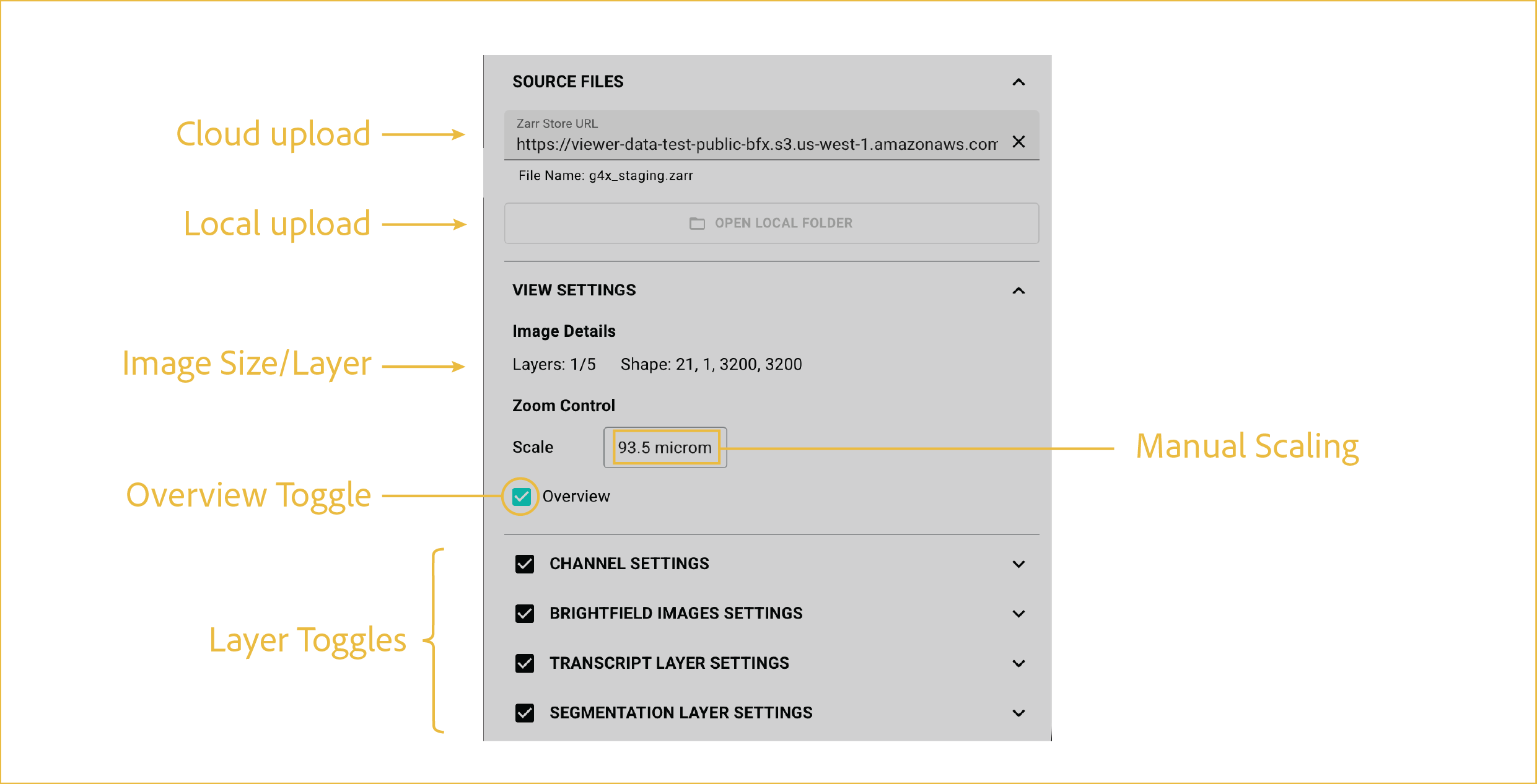
These controls cover data loading, Z-plane navigation, scale adjustment, and layer visibility.
features
-
Cloud Upload:
Use this button to paste a cloud storage link and stream data into the viewer in real time.
-
Local Upload:
Use this button to upload files from local storage. Depending on the viewer version, you can:
- Upload a single Zarr file (available beginning with version 4.0.0), or
- Upload multiple files directly from the g4x_viewer output directory generated by the G4X pipeline.
When using legacy data and viewer versions, each file contains a specific data layer or metadata component of the G4X assay:
<sample_id>.ome.tiff— Contains all protein images stored as a composite image.<sample_id>_HE.ome.tiff— Contains the fH&E image.<sample_id>.bin— Contains segmentation mask vertices.<sample_id>.tar— Contains transcript locations.<sample_id>_run_metadata.json— Contains sample and run metadata.
For additional information about viewer-compatible output files, see the g4x_viewer output documentation.
-
Image Size/Layer:
Displays the current layer, total layer count, and image dimensions.
-
Manual Scaling:
Controls the zoom level by setting the scale bar to represent a specific value. During standard zooming, the scale bar automatically updates as you zoom in and out of the image.
-
Overview Toggle:
Shows or hides the image overview in the lower-left corner of the screen. This window displays the full image as a thumbnail, with the current viewing area outlined in red to help you track your position while zoomed in.
-
Layer Toggles:
Shows or hides image layers displayed in the viewer.
- Channel Settings: Shows or hides protein image layers.
- Brightfield Images Settings: Shows or hides the fH&E layer.
- Transcript Layer Settings: Shows or hides transcript dots.
- Segmentation Layer Settings: Shows or hides cell segmentation masks.
⸻