segmentation layer
This section describes how to customize cell segmentation displays, adjust mask appearance, and apply cell-level filtering based on clustering, protein expression, transcript abundance, and other analysis outputs.
reference image
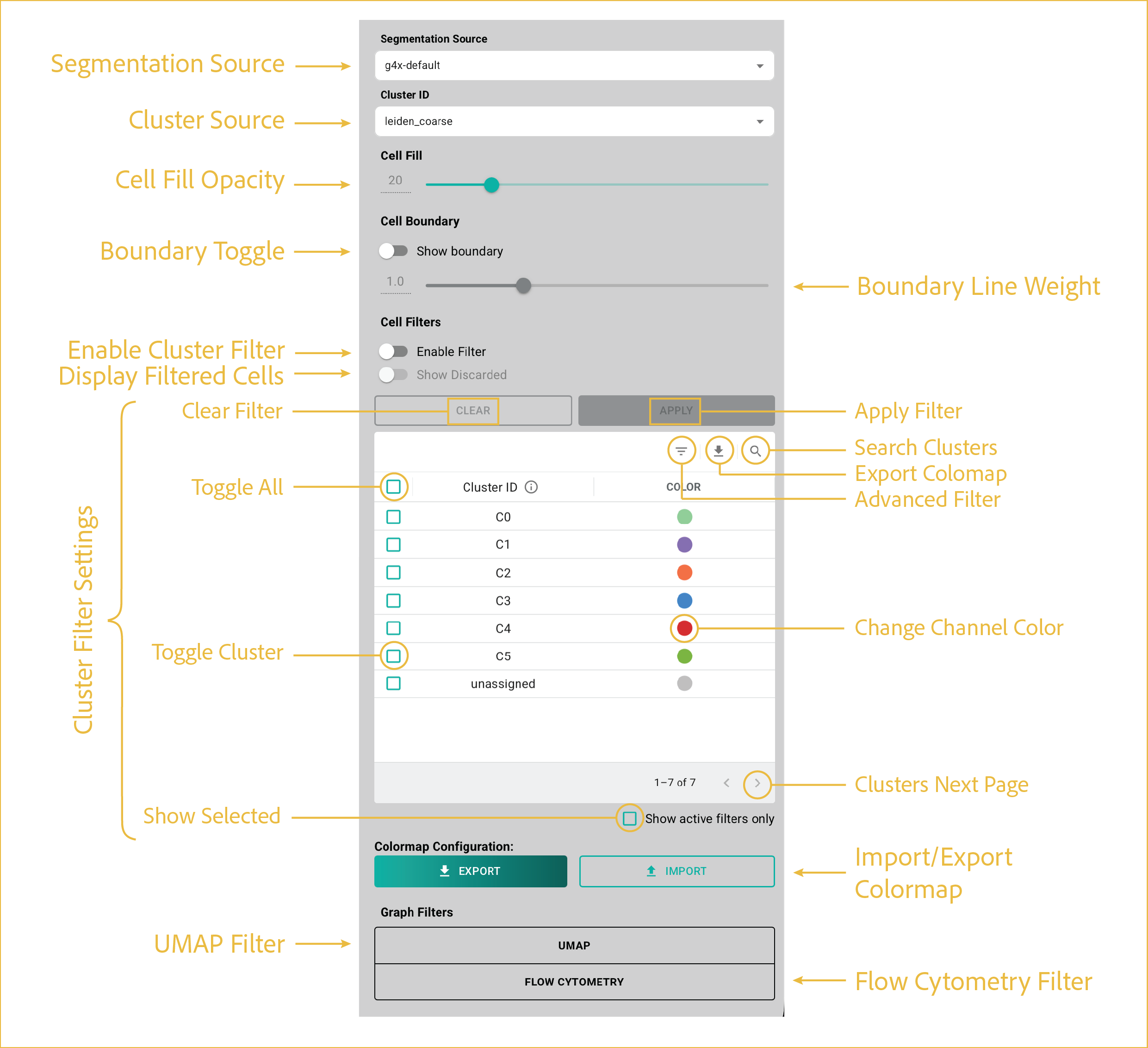
These controls select segmentation and cluster sources, style cell masks, and apply cell-level filters.
features
-
Segmentation Source:
Selects which segmentation source is displayed in the viewer. By default, the viewer provides nuclear expansion segmentation. You can use the g4x-helpers toolkit to apply additional segmentations that appear in this drop-down menu.
-
Cluster Source:
Selects which clustering annotation is displayed in the viewer. By default, the viewer provides base Leiden clustering. You can use the g4x-helpers toolkit to upload additional cluster annotation layers that appear in this drop-down menu.
-
Cell Fill Opacity:
Adjusts the transparency of cell fills when enabled. A value of 0 is fully transparent, while 100 is fully opaque.
-
Cell Boundary Toggle:
Shows or hides cell boundaries, which are displayed as fully opaque lines. This toggle triggers a warning because displaying boundaries for large datasets can be resource intensive and may cause browser instability or crashes.
-
Boundary Line Weight:
Adjusts the thickness of displayed cell boundary lines.
-
Enable Cluster Filter:
Enables or disables the filter specified in the Cluster Filter Settings section.
-
Display Filtered Cells:
Shows or hides cells excluded by the active filter. When shown, excluded cells appear as gray polygons in the cell mask layer. This option is available only when a filter is actively applied to the image.
-
Cluster Filter Settings:
These features specify the filter state for cell mask overlays. They rely on clustering information and expression of protein or RNA species of interest. Clusters labeled -1 were not assigned to a cluster, typically due to filtering or quality-control processes in onboard analysis.
- Apply Filter: Applies the current filter to the displayed image.
- Clear Filter: Clears the current filter from the displayed image.
- Search Clusters: Searches clusters by name. Manually updated cluster names can represent cell types or other annotations.
- Export Colormap: Exports the displayed cluster and color data.
- Advanced Filter: Opens additional options for filtering the cluster table.
- Toggle All: Toggles selection of all clusters on or off.
- Toggle Cluster: Toggles selection for a single cluster.
- Show Selected: Hides all non-selected clusters.
- Change Channel Color: Changes the color selection for a given cluster.
- Change Page: Moves between pages when there are too many clusters to display at once.
-
Import/Export Colormap:
Import or export the cluster colormap as a JSON configuration file.
- Import: Click Import, then select a previously saved JSON configuration file.
- Export: Configure the cluster colors as desired, then click Export and choose a save location and filename.
-
UMAP Filter:
Opens the UMAP filtering interface, allowing you to select cell populations based on their position within the UMAP embedding.
See UMAP filter for additional details.
-
Flow Cytometry Filter:
Opens the flow cytometry filtering interface, allowing you to select cell populations based on protein expression distributions.
See flow cytometry filter for additional details.
⸻