protein layer
This section describes how to customize protein visualizations, including channel selection, color assignment, display ranges, channel isolation, and related settings.
reference image
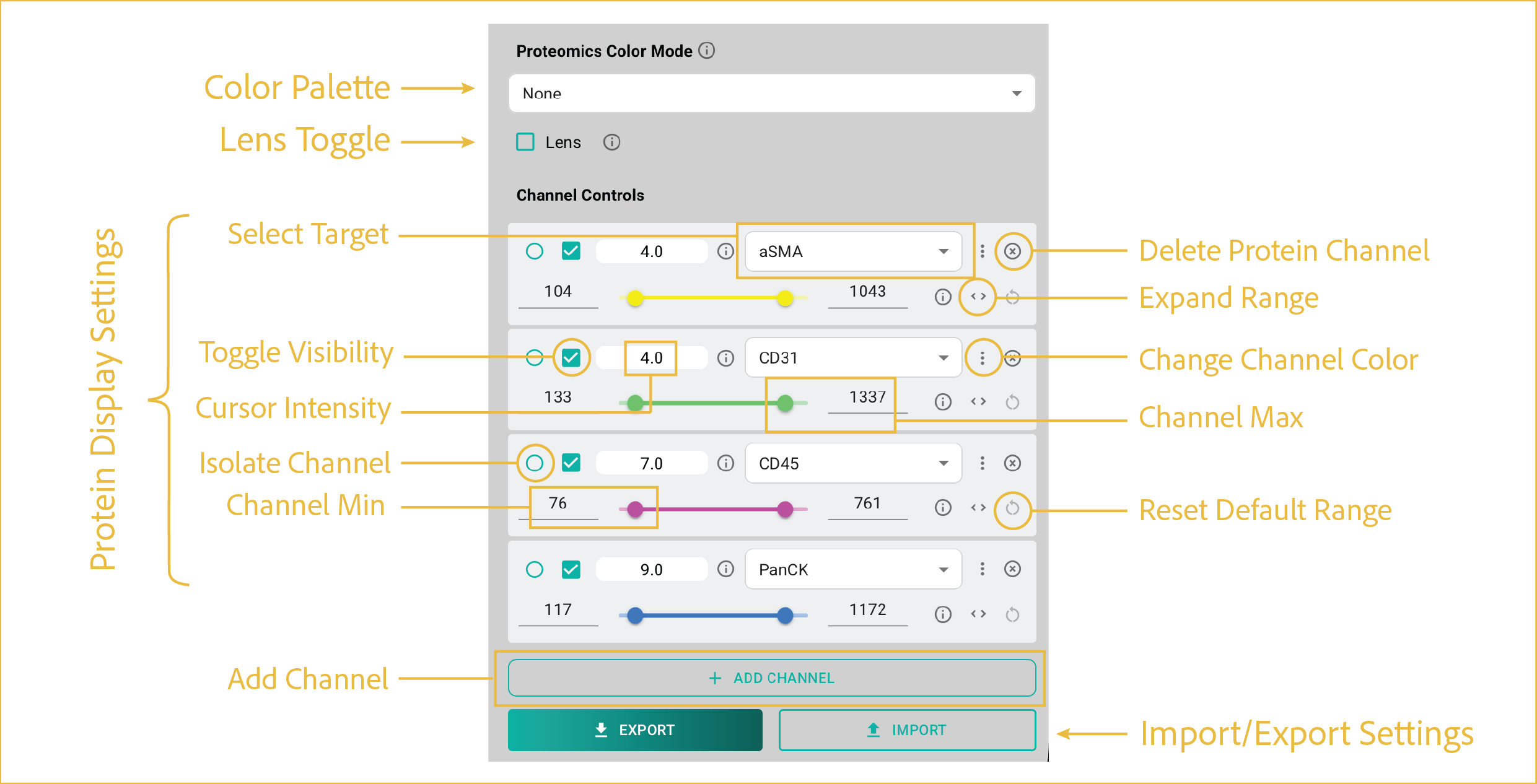
These controls configure protein channel visibility, color, intensity range, and lens behavior.
features
-
Color Palette:
Select the color palette used to display protein images. Available palettes are based on standard Plotly color schemes.
-
Lens Toggle:
Enables the protein lens visualization tool. When activated, a selection panel appears, allowing you to choose a protein channel to focus on with the Lens tool. The selected channel is displayed in color within the lens area (the lens tracks your cursor position), while all other active protein channels are displayed in grayscale.
-
Protein Display Settings:
This section includes several configurable options that allow you to customize how protein data is displayed and interpreted.
- Select Target: Enables or disables the selected protein channel.
- Toggle Visibility: Enables or disables the selected protein channel.
- Cursor Intensity: Displays the intensity value at the current cursor location for the specific protein channel. Values for all active channels are displayed simultaneously.
- Isolate Channel: Displays only the selected protein channel while hiding all others.
- Channel Min/Max: Adjust the display intensity range by entering values manually or using the slider control.
- Add Channel: Adds an additional protein channel. A maximum of six protein channels are allowed simultaneously.
- Delete Channel: Deletes the specific protein channel.
- Change Channel Color: Allows selection of the channel color from a preset list of color options for the specific channel. Repeat color selections are allowed.
- Expand Range: Expands the default protein intensity range slider to allow broader Channel Min/Max values to be set for the specific channel.
- Reset Default Range: Resets Channel Min/Max values to default values for the specific channel.
-
Import/Export Settings:
Import or export protein channel settings as a JSON configuration file.
- Import: Click Import, then select a previously saved JSON configuration file.
- Export: Configure the protein channels as desired, then click Export and choose a save location and filename.
Find and save your preferred settings
Configure your preferred protein display settings once, then export and reuse the saved configuration for future samples.
⸻